Custom Bot
Create and manage your own personalized Discord music bot with Reedroux Custom Bot. Configure your Discord application, customize your bot's identity, and control its operation directly from the Reedroux Dashboard.
1. Overview
Reedroux Custom Bot connects your own Discord bot application to Reedroux's music infrastructure. Your dashboard includes subscription details, bot configuration, runtime controls, identity settings, and a live preview.
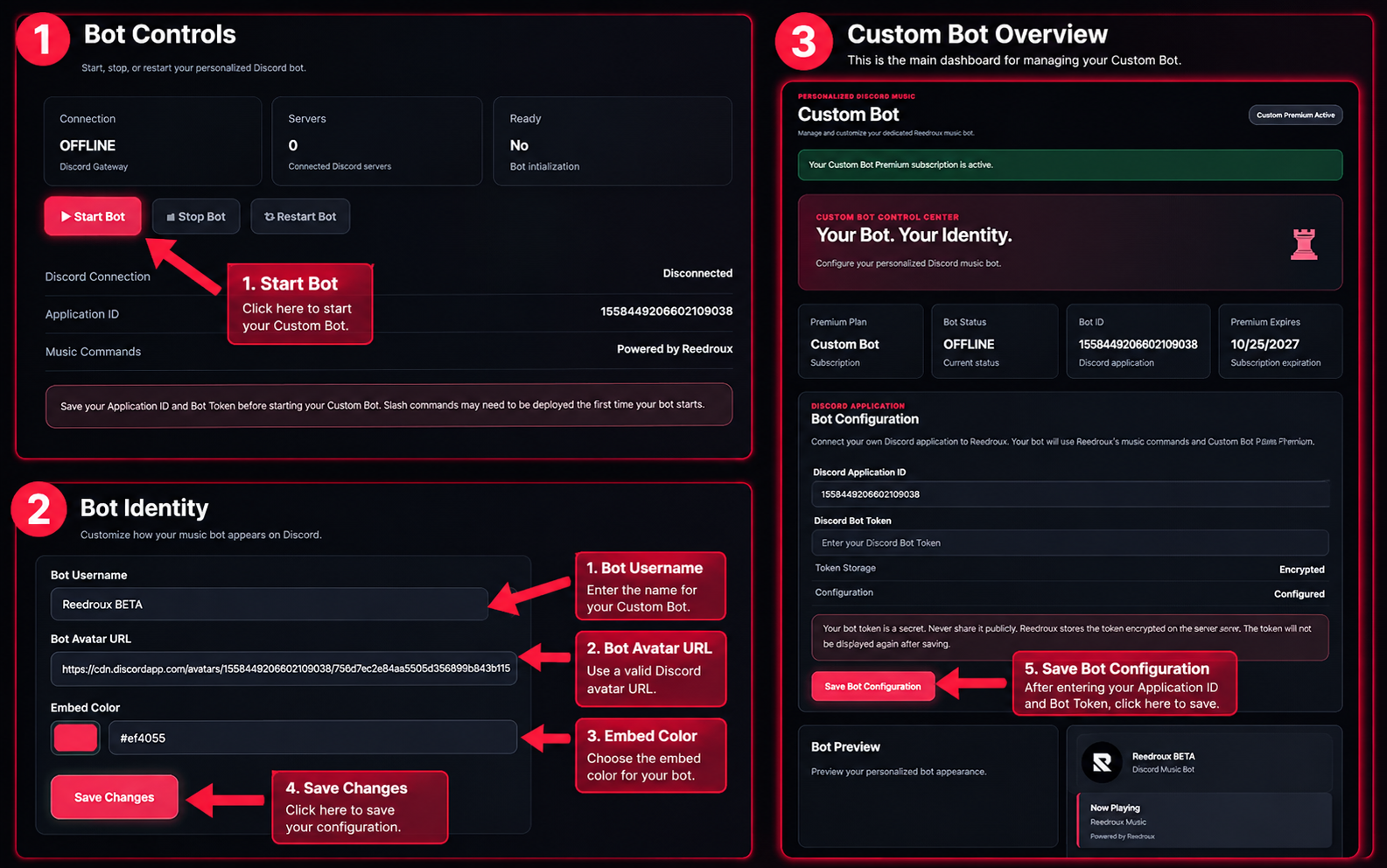
Dashboard walkthrough: configuration, bot controls, and identity settings. The image is an illustrative annotated recreation; the live dashboard may differ.
2. Requirements
To get started, you need:
- A Discord account
- An active Custom Bot subscription
- A Discord bot application that you control
- Access to the Reedroux Dashboard
Custom Bot requires its own subscription. Regular Reedroux Premium does not automatically include Custom Bot access.
3. Access the Dashboard
- Open the Custom Bot Dashboard.
- Select Login with Discord if you are not signed in.
- Authorize Reedroux through Discord.
- Wait for the dashboard to verify your subscription.
- Open the Custom Bot management page.
The dashboard displays your subscription status, bot status, application ID, and subscription expiration date where available.
4. Connect Your Discord Application
In the Bot Configuration section, connect the Discord application you want Reedroux to manage.
Discord Application ID
Enter your application's ID from the Discord Developer Portal. This identifies the Discord application associated with your Custom Bot.
Discord Bot Token
Enter the bot token for that application. The dashboard indicates that saved tokens are stored encrypted and are not displayed again after saving.
Your bot token is a secret. Never post it in public channels, screenshots, support requests, or documentation. If it is exposed, reset it in the Discord Developer Portal.
Save Bot Configuration
- Verify the Discord Application ID.
- Enter the Discord Bot Token.
- Click Save Bot Configuration.
- Wait for confirmation before attempting to start the bot.
Slash commands may need to be deployed when your bot starts for the first time.
5. Start, Stop, or Restart Your Bot
The Bot Controls section displays the Discord connection, connected server count, initialization readiness, and runtime actions.
| Control | What it does |
|---|---|
| Start Bot | Starts your configured Custom Bot. |
| Stop Bot | Stops your running bot. |
| Restart Bot | Restarts the bot process. |
| Connection | Shows whether the bot is connected to Discord. |
| Servers | Shows the number of connected Discord servers. |
| Ready | Indicates whether bot initialization has completed. |
To start the bot, first save your application configuration, then click Start Bot. Wait for the connection and readiness indicators to update.
Stopping or restarting the bot may temporarily interrupt its availability and music playback.
6. Customize Bot Identity
The Bot Identity section lets you personalize the appearance of your music bot.
Bot Username
Enter the username you want to use for your bot. Changes may take time to appear on Discord and can be subject to Discord's platform restrictions.
Bot Avatar URL
Enter a valid, publicly accessible image URL for your bot's avatar. The dashboard uses a URL field rather than a direct file upload in the interface shown.
Embed Color
Choose the accent color used by supported Reedroux music embeds. You can select a color or enter its hexadecimal value, such as #ef4055.
Save Changes
- Update the Bot Username, Bot Avatar URL, or Embed Color.
- Check the Bot Preview beside the form.
- Click Save Changes.
- Wait for confirmation and verify the result.
7. Bot Preview
The Bot Preview panel displays an example of your bot's appearance, including its username, avatar, and a sample music embed. Use it to check your branding before saving.
The preview is illustrative and does not necessarily indicate that your bot is currently online.
8. Subscription and Access
Your Custom Bot dashboard shows subscription-related information such as your plan and expiration date. An active Custom Bot subscription is required to use the management features.
View Premium and Custom Bot Plans
If your subscription is active but the dashboard does not recognize it, confirm that you are signed in with the Discord account associated with the subscription.
9. Troubleshooting
The bot will not start
- Confirm that the application ID and bot token have been saved.
- Check the connection and readiness indicators.
- Review any error message displayed by the dashboard.
- Contact support if the issue persists.
The bot is offline
Check the runtime status and whether the bot has been started. A saved configuration does not mean the bot is running.
Changes do not appear
Confirm that you clicked Save Changes. Refresh the page and check the bot again. Some Discord identity updates may not appear immediately.
The dashboard shows a black screen
Your browser may be loading outdated cached files. Perform a hard refresh:
- Windows / Linux:
Ctrl + Shift + R - macOS:
Cmd + Shift + R
If the issue continues, try a private browsing window or clear the site's cached files.
Subscription is not recognized
Verify your Discord account and subscription status, then sign out and sign in again. Contact support if access remains unavailable.
10. Security
- Keep your Discord bot token private.
- Never include credentials in screenshots or bug reports.
- Use the official Reedroux dashboard for configuration.
- Reset your token immediately if you believe it has been exposed.
- Protect your Discord account with two-factor authentication.
11. Support
Need assistance with Custom Bot? Discord Server https://reedroux-bot.xyz/support.
Include the affected dashboard section, a description of the issue, steps to reproduce it, and any relevant error messages. Do not include your bot token.
See the Reedroux Changelog for updates.
Ready to Get Started?
Made by the Reedroux Team.